| Oracle® Fusion Middleware 12c Release 1 (12.2.1) |
|
When you create an analysis, you can specify sorting for the results that are displayed in funnels, gauges, graphs, heat matrices, pivot tables, tables, and trellises.
Some sort functionality is common to graphs, heat matrices, pivot tables, tables, and trellises.
Graphs, heat matrices, pivot tables, tables, and trellises reflect the sorting that you specify in the Selected Columns pane of the Criteria tab for attribute columns and hierarchical columns. Use the Sorting menu options that are available from the Options button for a column. These sorting options provide the ability to sort by a single column or by multiple columns, each in either ascending or descending order. By creating sorts for multiple columns, you can specify multiple level sorts such as second-level and third-level sorts of the data. These sort levels are indicated with numbers and a sort icon for the column in the Criteria tab.
The options that you specify on the Criteria tab serve as the initial sorting state of the analysis. You can modify the sort later when the analysis is used.
When you sort items in a hierarchical column, you always sort within the parent. That is, children are never sorted outside of their parent. The children are displayed below the parent in the proper sort order; the parent is not sorted within its children.
If you include totals in a view, then those values are not sorted. They remain in the location in which you placed them, regardless of sorting.
If you sort an attribute column or hierarchical column that includes a group, then that group is always displayed at the bottom of the list. If there are multiple groups, then the groups are listed in the order in which their corresponding steps are specified in the Selection Steps pane.
Sorting allows you to quickly sort rows and columns of a view, either from lowest to highest data values, or from highest to lowest. You can also return the order to the order in the data source by clearing all sorts. You can specify alphanumeric sorts on the row and column edges of heat matrix, pivot table, table, and trellis views.
You make sorting specifications in various ways, including those in the following list:
In the Selected Columns pane of the Criteria tab, click the Options button beside the column and select the appropriate sort option from the menu. For more information on the sorting options menu, see "Sorting Options Menu."
Right-click in a heat matrix, pivot table, table, or trellis, select Sort or Sort Column (whichever is available). If you select Sort, the "Sort dialog" is displayed, where you choose the sorting options. If you select Sort Column, you then select the appropriate sorting option from the menu (see "Sorting Options Menu" for additional information).
Right-click in a graph view on a data marker (such as a bar, line, or slice depending on the graph type), a legend item, a group-level (X axis) item, or a Prompts label or Sections label, select Sort, and then select the appropriate sort options in the "Sort dialog." For an example of sorting in a graph, see "Sorting in Graphs by Using the Right-Click Menu."
|
Note: If a pivot table is created by using the Graph Pivoted Results button, the right-click menu option is not available for the graph. See "Toolbar Buttons and Box Specific to Pivot Table, Table, and Trellis Views" for additional information. |
Hover the mouse pointer over the area to the right of the column name in the header of a heat matrix, pivot table, table, or trellis view, and then click either the upward-facing triangle (Sort Ascending) or the downward-facing triangle (Sort Descending) for that column. These sort specifications override those that you make with the right-click menu.
If you see a shaded-in sort button in the column header or the row header, then you know that the column contains a primary sort. You can add a second-level or third-level sort by hovering over another innermost column header or row header and clicking the appropriate sort button or clicking the right-mouse button.
Any sorting options that you specify in a view override those that were made in the Selected Columns pane.
|
Notes: If you have deselected Sort Columns in the "Analysis Properties dialog: Interactions tab," you cannot sort a column in a view at runtime.The locale of the user is not taken into consideration for a sort applied directly in a pivot table. Instead, a binary sort is done. If you want the user's locale to be considered, apply the sort in the Criteria tab. |
You can use various methods to clear sorts:
For sorts that have been applied in the Selected Columns pane, click Clear All Sorts in All Columns. The sort specifications that you made in the Selected Columns pane are removed. Sorts that you specified in a view remain.
For sorts that have been applied from the Prompts label or Sections label in a graph, heat matrix, pivot table, table, or trellis view, hover the mouse pointer over the Prompts label or Sections label, right-click and then select Sort. Within the "Sort dialog," click the Clear All Sorts in Edge button from each sort area, and then click OK.
For sorts that have been applied directly in a heat matrix, pivot table, table, or trellis:
Click a sort button in an unsorted column to remove the primary sort from the column to which it now applies and apply it to the column whose button you just clicked.
Select the Clear All Sorts in View option from the right-mouse menu.
For sorts that have been applied in a heat matrix view, hover the mouse pointer over the outer edge, column label, or row label, right-click and then select Sort. Within the "Sort dialog," click the Clear All Sorts in Edge button from each sort area, and then click OK.
For sorts that have been applied in a graph view, select any data marker, legend item, group-level (X axis) label, right-click and then select Sort. Within the "Sort dialog," click the Clear All Sorts in Edge button from each sort area, and then click OK.
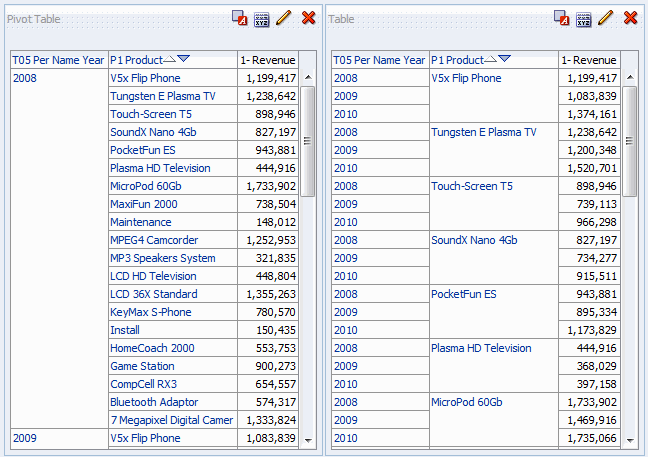
Pivot tables always sort each edge from outer to inner layer by default. This differs from previous releases (prior to 11g) that used a tabular sort, determined by the sorts specified on the criteria columns, as the default sort for pivot tables.
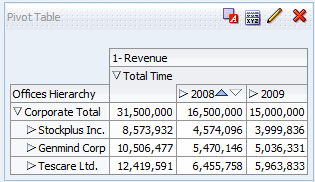
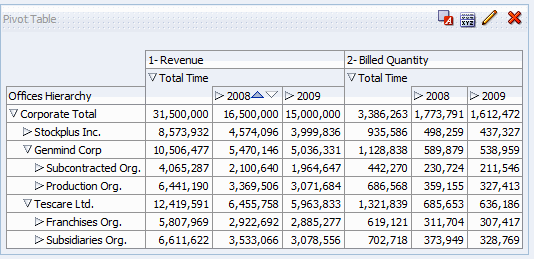
Suppose that you have a pivot table with Time Hierarchy on the column edge and Offices Hierarchy on the row edge; both are hierarchical columns. 1 - Revenue in dollars is the measure that is shown in the pivot table. You can sort the Offices Hierarchy by the 1 - Revenue for a particular year as highest revenue to lowest revenue, or lowest to highest, or no sorting at all.
Figure 3-26 shows an example of sorting Offices Hierarchy by 1 - Revenue for year 2008, in ascending order. The Corporate Total parent is always displayed above its children. The values for other years might not be sorted numerically, because only year 2008 was selected.
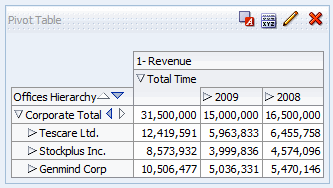
Figure 3-27 shows an example of sorting the Time Hierarchy by the 1 - Revenue for Corporate Total. The years are re-arranged in the order 2009 and 2008. In 2009, Corporate Total had its lowest value; and in 2008, it had its highest value.
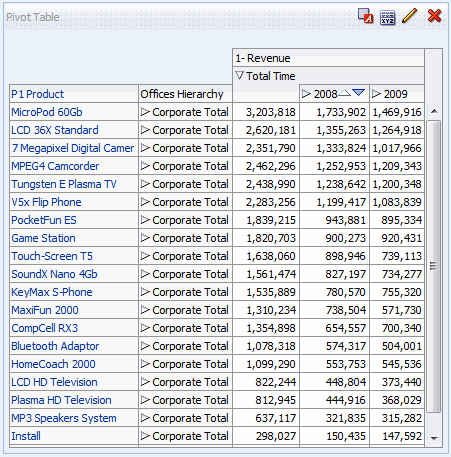
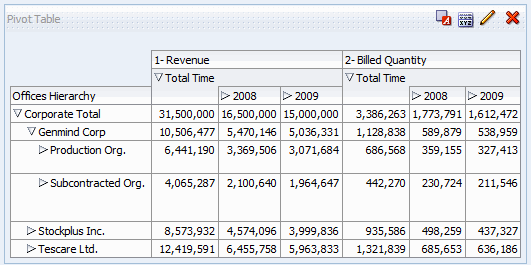
Suppose that you have a pivot table with the Time Hierarchy on the column edge and P1 Products and the Offices Hierarchy on the row edge, with Products outside Offices. 1 - Revenue in dollars is the measure that is shown in the pivot table. You can sort the row edge by the 1 - Revenue for 2008 in descending order. The Offices are sorted as in Example 1, but the Products are not sorted, because they are in the outermost layer. See Figure 3-28.
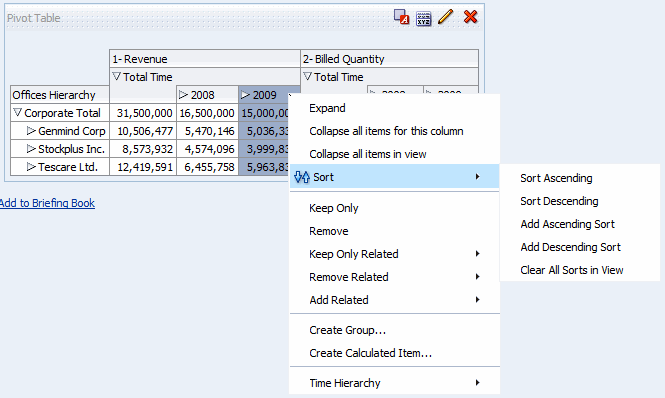
Suppose that you have a pivot table with the Time Hierarchy on the column edge and the Offices Hierarchy on the row edge. Both 1 - Revenue and 2 - Billed Quantity are the measures in the pivot table as shown in Figure 3-29. If you try to sort the years by the leaf-node for GenMind Corp using the upward facing triangle (Sort Ascending), then the first measure on the column edge (reading left to right) is chosen as the one on which to sort. If 1 - Revenue is the first measure on the edge, then the pivot table is sorted as shown in Figure 3-30.
If the measures are on the row edge and you sort by a year, then the top-most measure is used for sorting.
If you sort using the Sort right-click interaction, in pivot tables, tables, or trellises, then options that allow you to select which measure to use in the sort are displayed. See "Sorting Options Menu" for additional information.
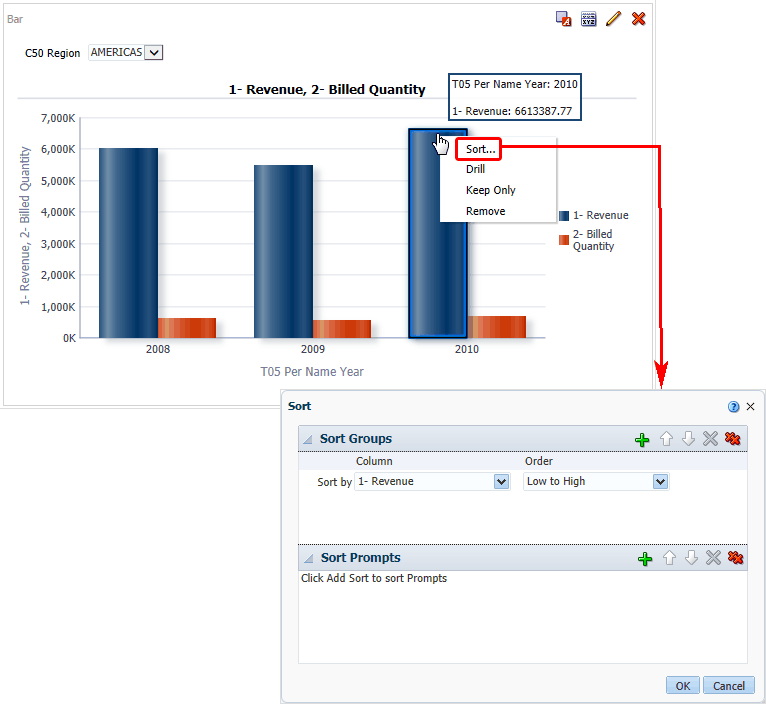
You can right-click in a funnel, gauge, or graph view on a data marker (such as a bar, line, or slice depending on the graph type), a legend item, a group-level (X axis) item, or a Prompts label or Sections label. You select Sort, and then select the appropriate sort options in the "Sort dialog."
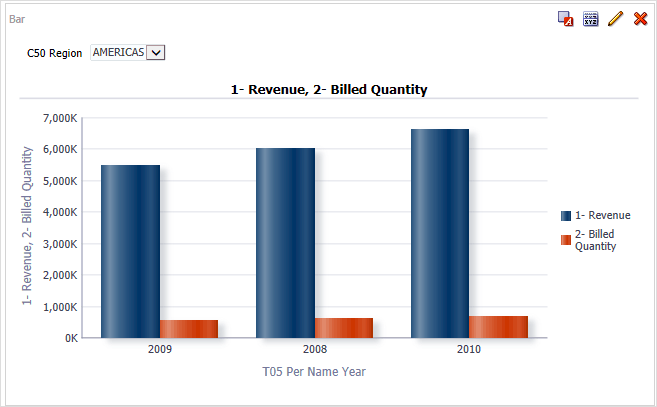
Suppose that you have a vertical bar graph with two measures, 1 - Revenue and 2 - Billed Quantity, and these measures are grouped by T05 Per Name Year and prompted by C50 Region. Suppose that you want to sort the bar graph by revenue in ascending order.
Figure 3-32 shows an example of the Sort dialog, where 1 - Revenue is selected as the Sort by Column and "Low to High" (or ascending) is selected as the Order.
Figure 3-33 shows the results of sorting a vertical bar graph with two measures, 1 - Revenue and 2 - Billed Quantity. These measures are grouped by T05 Per Name Year, prompted by C50 Region, and then sorted by 1 - Revenue in "Low to High" sequence.
In previous releases (prior to 11g) of Oracle BI EE, you could create sorts for columns in views. If you upgrade from a previous release (prior to 11g), then you might notice that the views are sorting the columns slightly differently. For information, see "Upgrading Sorts" in Upgrade Guide for Oracle Business Intelligence.