| Oracle® Fusion Middleware 12c Release 1 (12.2.1) |
|
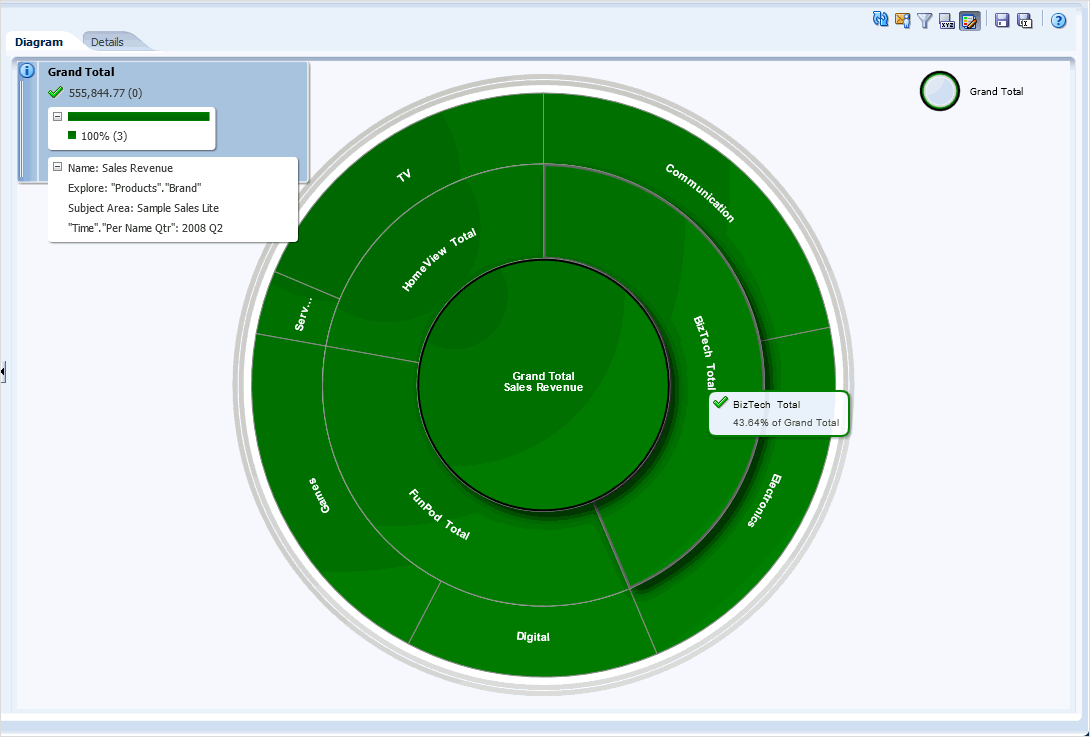
The KPI contribution wheel diagram is composed of the following:
KPI contribution wheel — Consists of a center circle (or focus node) that is the focused dimension member name being examined. Concentric rings (named sectors) surround the focus node. Each sector provides the following information:
Name and percentage: The name of the dimension and percentage of its parent's actual value displays when you hover the mouse over a sector.
Size of sector: The size of a sector is determined by the ratio of (sector actual value) / (parent actual value). Only additive KPIs are supported in the KPI contribution wheel at the time of writing.
Color: The color of each sector is based on the status assessment that corresponds to the current point-of-view or dimensional pinning. The mapping of numeric values to status colors is part of the KPI definition and is configured in the "KPI editor: States page."
Outer rings: The outer rings allow you to expand and collapse one or more levels to explore the dimension.
Information pane — Displays the following information about the current node (the current node is where the mouse pointer is hovering on the desktop):
The explore dimension name from the focus node
The status color, actual value, and variance percentage
The status of its children
The percentage contribution to its parent's actual value
Focus trail — Consists of a group of small circles that represent the node in the center of the KPI contribution wheel and any of its ancestors that are included in the diagram. Each circle displays the status color of its corresponding node. The chained circles show a hierarchy of dimension member nodes as you consume detail in the KPI contribution wheel by drilling. See "Changing Explore Dimensions Within KPI Contribution Wheels" for additional navigation information.
When the KPI contribution wheel document is saved to the catalog, the focus trail is also saved. When you open the KPI contribution wheel, the focus trail acts as a temporary constraint, in that membership is applied from top to bottom, similar to the way drilling occurs. See "Changing Explore Dimensions Within KPI Contribution Wheels" for additional information.
|
Note: When you switch to a different explore dimension, the focus trail will no longer show the ancestors of the prior explore dimension. The focus trail will only show the ancestors in the current explore dimension. |
Double-clicking on the ancestor node in the focus trail changes the focus to that ancestor.
Figure 11-13 shows an example of a KPI contribution wheel diagram for Sales Revenue. The mouse cursor is hovered over a sector (BizTech), showing the percentage of contribution to the overall dimension. In this example, BizTech contributes 43.64% of the overall sales revenue.
You:
Create a KPI contribution wheel by:
Hovering your mouse in the global header over the New menu, and then selecting KPI Contribution Wheel.
Clicking the More link in the Home page - Performance Management area, and then by selecting KPI Contribution Wheel (see "Home page").
Right-clicking a KPI in the Home or Catalog pages, and then choosing View KPI Contribution Wheel.
Right-clicking a KPI node or KPI row in scorecard diagrams or watchlists, and then choosing View KPI Contribution Wheel.
Can switch between dimensions, but view and explore only one dimension at a time.
Save a KPI contribution wheel to the catalog (not on a mobile device).
Open a KPI contribution wheel in a standalone editor in either edit mode or read-only mode on a desktop (not on a mobile device).
View or create a KPI contribution wheel by right-clicking a KPI in a scorecard view (for example, a strategy contribution wheel), smart watchlist, or KPI watchlist, and then selecting View KPI Contribution Wheel.
View (in read-only) a KPI contribution wheel on a dashboard on a mobile device. You cannot open a KPI contribution wheel directly from the catalog in the mobile application.
Create a KPI contribution wheel for any dimensional additive KPI without having to create a scorecard or manually configure a weight.
Contact the business owner of a KPI contribution wheel. See "Contacting the Business Owner of KPIs" for additional information.
Add the KPI contribution wheel to a dashboard by drag and drop. (See "About KPI Contribution Wheels and Dashboards.")
Preview the KPI contribution wheel from the "Catalog page" by selecting the saved KPI contribution wheel and expanding the "Preview pane." See "Preview pane" for additional information.
(optionally) Pin one or more dimensions by using the "Dimension Pinnings dialog" in the KPI contribution wheel editor or when adding the KPI contribution wheel diagram to a dashboard. A pinning will also be added if you drill down in one dimension and then switch to another explore dimension. See "About KPI Contribution Wheels and Dashboards."
|
Note: If you are in accessibility mode, the KPI contribution wheel displays as a standard interactive analysis for the KPI rather than as a KPI contribution wheel diagram. See "Accessibility Features" for additional information. |